
Sage 50– ‘the most desired accounting software’ comes pre-loaded with many high-performing, rich and comprehensive features such as “Database Connection Manager that helps Sage to manage access to its MySQL database” has without any doubt, made the process of accounting management smooth and flawless. Basically, the Connection Manager easily updates the data changes in real-time and exempts the need for manual intervention.
However, sometimes fatal errors occur and Connection Manager stops responding in Sage 50 leaving you in a frustrated state. So, if the Sage 50 Database Connection Manager Service is not running or responding on your computer, it is necessary to fix this issue by acknowledging the possible reasons behind it to again make the process of accounting smooth and flawless.
So, without wasting any further second, let’s have a look at the below-given reasons that could be the possible causes of the “Sage 50 Connection Manager not responding” issue:
- Reason 1: If any third-party antivirus or firewall interrupting the Connection Manager Service.
- Reason 2: If Windows operating system update is pending.
- Reason 3: If Connection Manager Service is disabled mistakenly in the Windows services.
- Reason 4: If the Connection Manager is not installed properly and only running on the server.
‘The Connection Manager not responding’ is a common issue in Sage and therefore can be fixed either by taking expert help from the Sage 50 technical team or by manually solving it yourself. So, if you choose to manually resolve the issue first then, you’re at the right place! To help you in resolving this issue, below we’ve mentioned a total of 5 solutions and out of them, you can try any of them or all, to ensure troubleshooting the ‘Connection Manager’ error completely.
But, wait, before starting with the troubleshooting guide, you have to make sure one thing and that is to check whether any of your third-party antivirus software/application or your firewall setting is affecting your normal Windows operation or not. If yes, then disable your firewall and remove the available third-party antivirus program from your Windows operating system.
- To disable Firewall: Navigate from ‘Windows Start button > Control Panel > Windows Firewall > Turn Windows Firewall off or on’ to finally turn off Windows Firewall.
- To disable Antivirus: Navigate from ‘Windows Start button > Settings > Update & Security > Windows Security > Virus & Threat Protection > Manage Settings’ to ‘Switch Real-time protection on or off’ to turn off the toggle switch.
After doing that, you’re absolutely ready to perform the steps of the below-given effective solutions. So, let’s get started:
- Solution 1: Install the Pending Windows Updates: (if there’s any)
- Solution 2: Re-Start the Connection Manager Service Using the Control Panel:
- Solution 3: Re-Start the Sage 50 Connection Manager Using the Icon in the System Tray
- Solution 4: Reset the Sage 50 Accounting Database Connection Manager via 'Services’
Solution 1: Install the Pending Windows Updates: (if there’s any)
- Start your computer and press ‘Win +R’ key shortcut to open the ‘Windows Run Dialog Box.’
- In the box, type ‘services.msc’ and click on the ‘OK’ button.
- Doing so will open the list of Windows services in front of you and you have to select the ‘Windows Update Service’ from the list.
- Now, verify whether any pending Windows Updates are waiting to be installed or not.
- If there’s any, then install it by following the on-screen instructions.
- Lastly, reboot your system after that and then try to open Sage 50 Connection Manager.
Now, before moving on to the main solutions to fix ‘Connection Manager Not Responding Issue in Sage 50 Accounting,’ make sure to close all Sage 50 related processes especially the “Sage 50 Database Connection Manager” from the Task Manager’s Processes tab and then start performing steps of given solutions.
Solution 2: Re-Start the Connection Manager Service Using the Control Panel:
- First and foremost open your ‘Windows Control Panel.’
- Then, from the ‘Control Panel’ select the ‘Administrative Tools’ option.
- After that, select ‘Services’ and from the list of services, locate ‘Sage 50 Database Connection Manager.’
- Once you’re able to locate it, simply click on it to check whether the ‘Startup Type Column’ is set to ‘Disabled or Automatic /Automatic Delayed Start.’
- If it is set to ‘Disabled’ then you have to change it to ‘Automatic or Automatic Delayed Start’ and to do so:
- Click-right on the ‘Sage 50 Database Connection Manager’ to select its ‘Properties.’
- Then, from it, go to the ‘General Tab’ and change the ‘Startup Type’ to ‘Automatic or Automatic Delayed Start.’
- That’s it! Click on ‘Apply’ and then click on ‘Start’ to start the service in order to open the ‘Sage 50 Database Connection Manager.’
Solution 3: Re-Start the Sage 50 Connection Manager Using the Icon in the System Tray
Firstly, log on to your computer as ‘Administrator’ and then double-click on the ‘Sage 50 Database Connection Manager’ icon in the system tray from the lower-right corner of your desktop screen.
- If you’re able to find it, good enough otherwise what you can do is open your ‘Windows Explorer’ and from it go to “C:\Program Files (x86)\winsim\ConnectionManager.”
- From there, again double-click on the ‘Simply. SystemTrayIcon.exe file’ in order to check the running status of ‘Sage 50 Database Connection Manager.’
- If the ‘Running’ status shows ‘NO’ then select ‘Start Service.’
- And, if the ‘Running’ status shows ‘YES’ then select ‘Stop Service’ to again select ‘Start Service.’
- That’s it! Now, check whether the Sage 50 Connection Manager starts responding or not.
However, in the worst-case scenario if the ‘Starting/Stopping’ button of the service is missing and you’re unable to perform this step then what best you can do is simply uninstall and reinstall the Sage 50 software.
Solution 4: Reset the Sage 50 Accounting Database Connection Manager via ‘Services’
- To do so, select ‘Windows-F’ in order to type ‘Services’ in the ‘Search box.’
- After that, click on ‘Settings’ and select the ‘View Local Services’ from the available result list.
- Then, click right on the ‘Sage 50 Database Connection Manager’ in order to select its ‘Properties.’
- Further, click on the ‘Sign in’ tab and along with that also tap the circle next to ‘This record/account.’
- Then, click on ‘Browse’ in order to select your ‘Windows username’ and to type your ‘Windows Password.’
- Also, confirm your password by re-typing the same and then click on the ‘Apply’ button.
- After that, simply tap the ‘General’ tab as well as click on the ‘Begin’ button to finally reset the Sage 50 Accounting Connection Manager.
- Now, click on the ‘OK’ button to close the ‘Services’ and to finish the resetting process.
That’s it! After performing these steps correctly, you’ll surely be able to open your “Sage 50 Database Connection Manager” without any further difficulty.
Recommended: https://accountiod.com/how-to-fix-sage-50-accounts-not-downloading-error/
Related Posts
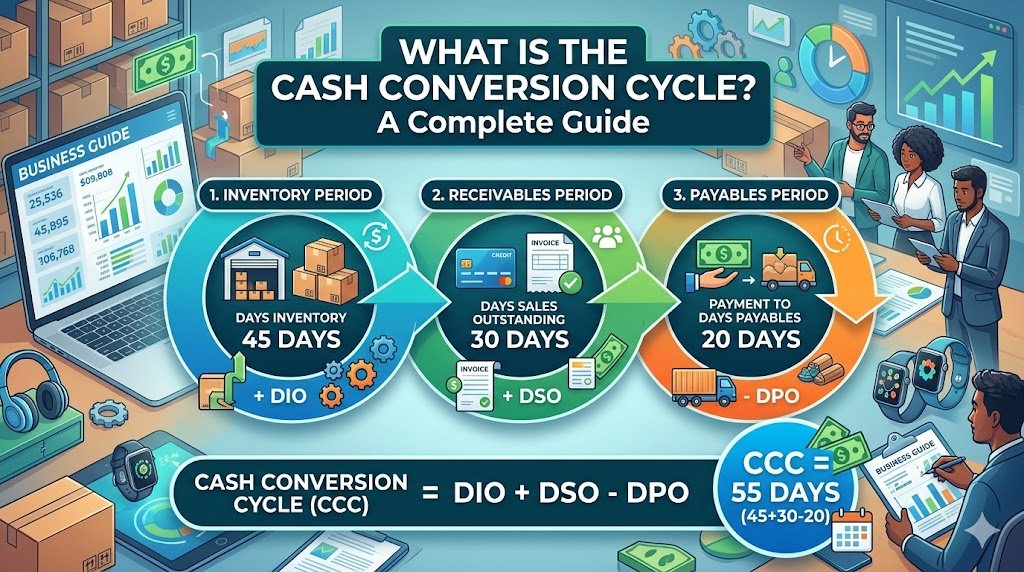
Have you ever wondered why a business that is able to make lots of sales could still run out of cash? The solution can normally be found in the time of their money inflow and outflow. Thousands of products can…
By Khushboo Chhibber

Table of Contents: Introduction Accountancy Update Example: ASC 842 Conclusion Introduction Keeping up to date with accountancy updates is a challenge, but it’s important that you do so. Accountants and business owners need to be aware of changes in the…
By Joseph Williams

For the Certified Management Accountant (CMA) exam, there are some very important points you need to know and consider if you want to excel at this financial management endeavor. This profession requires a lot of dedication and hard work to…
By admin

Outsourced accounting and bookkeeping services have become the ultimate solution for small business firms. It is very important to have a trained team to handle your accounts and books because the right management of finance is the backbone of every…
By admin

QuickBooks Connect is an Intuit’s application that brings thousands of self-employed individuals, business owners, and accounting professionals together so that they share their wisdom and experience. This tool enables you to widen your horizons of knowledge by connecting yourself with…
By Alena Hemsworth

Sage 50 is the most feature-rich accounting software that is being purchased on a large scale. But like any other normal software, it usually comes across errors. One of the most common errors is “Failed to create the license service.…
By admin

Sage 50 accounting software is a modular and integrated software package that comes as an all-in-one helping tool for small and medium-sized businesses that needs accounting modules such as the General ledger, Accounts Payable, Receivable, Payroll, Inventory, Project (Job) Costing,…
By admin

If you’re using one of the most desirable and efficient accounting software that well manages all your business-related tasks i.e. Sage 50 accounting software then, chances are high that you also must be encountering various technical errors from time and…
By admin

Are you facing issues while downloading the Sage 50 account software? This could be due to a number of reasons. The download issues are very common but they can be fixed easily if proper measures are taken, so here we…
By admin